
← Back to Home
Chaos Engineering
How to Simulate HTTP 400 Errors on iOS & Android Apps
Updated December 2025 • 6 min read
Server outages happen. Whether it's a 400 Bad Request or a 503 Service Unavailable, your mobile app needs to handle them gracefully. But forcing your backend team to shut down servers just for your testing is not practical.
The Challenge with Local Proxies
Traditionally, QA engineers use desktop tools like Charles Proxy or Fiddler. While powerful, they tether you to your desk:
- Network Dependency: Your phone and laptop must be on the exact same Wi-Fi network.
- IP Address Hell: Every time you switch networks (office to home), your laptop's IP changes, and you have to reconfigure your phone.
- Firewall Issues: Corporate firewalls often block the ports required for local proxying.
The Cloud Solution: Debuggo
Debuggo runs as a cloud proxy. This means you get a static address that works anywhere—on Wi-Fi, 4G, or LTE. You set it up once, and it keeps working.
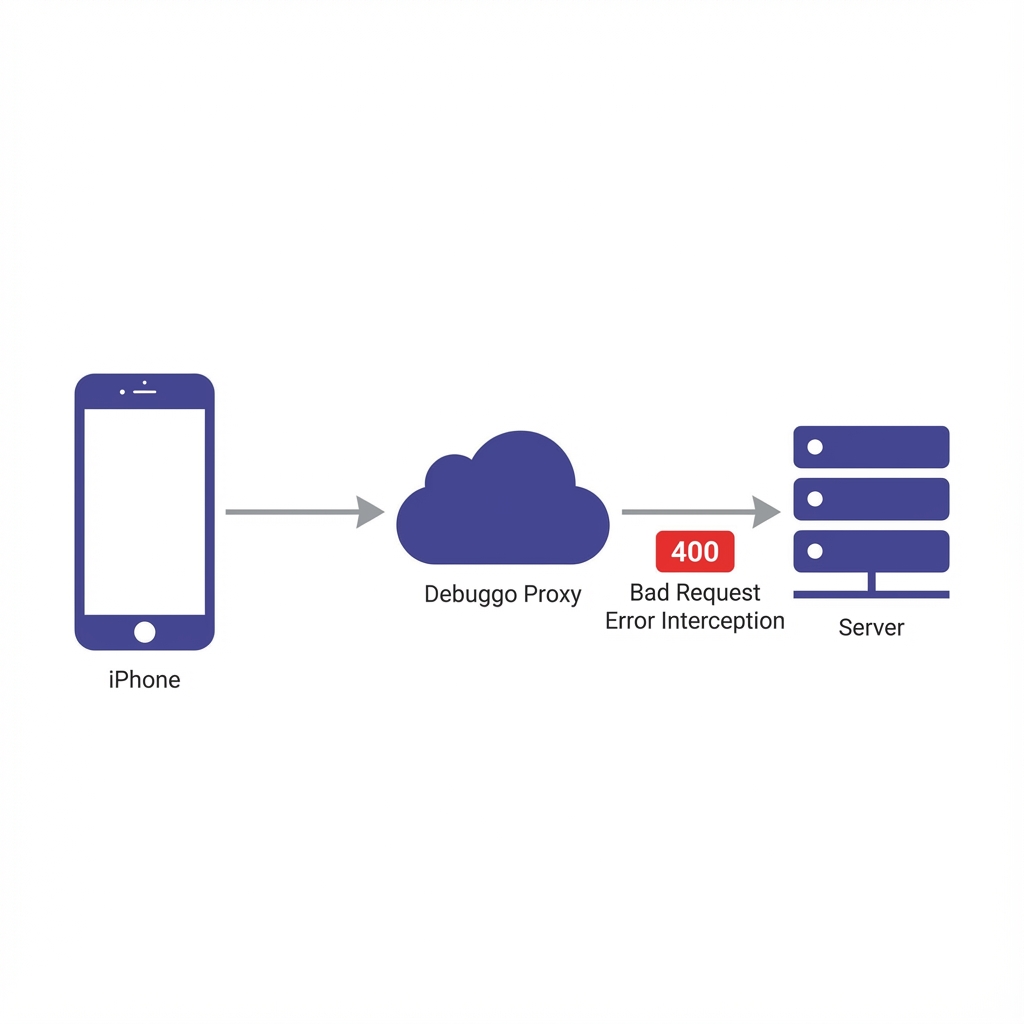
How to Force a 400 Error in 3 Steps
- Create a Rule: Log in to Debuggo. Click "Add Rule" and set the URL pattern (e.g.,
/api/v1/feed). - Set Chaos Parameters: Change the Status Code to
400. You can also add a 2000ms Delay to simulate a timeout before the error. - Connect Your Device:
- iOS: Settings → Wi-Fi → (i) icon → HTTP Proxy → Manual.
- Android: Settings → Network → Wi-Fi → Modify Network → Proxy → Manual.
Enter your dedicated host:chaos-proxy.debuggo.appand port:12080.
Once connected, open your app and trigger the action. Debuggo will intercept the request and instantly return the 400 error, allowing you to verify if your "Something went wrong" screen appears correctly.
What else can you test?
- Spinner Logic: Add a 10-second delay to ensure your loading spinner doesn't freeze the UI.
- Empty States: Rewrite the response body to return an empty JSON list
[]. - Malformed Data: Return invalid JSON to see if the app crashes (Chaos Testing).